
This guide will help you add Card and Mobile Money payments to your WooCommerce store using Astragate.
Step 1: Install the Plugin
-
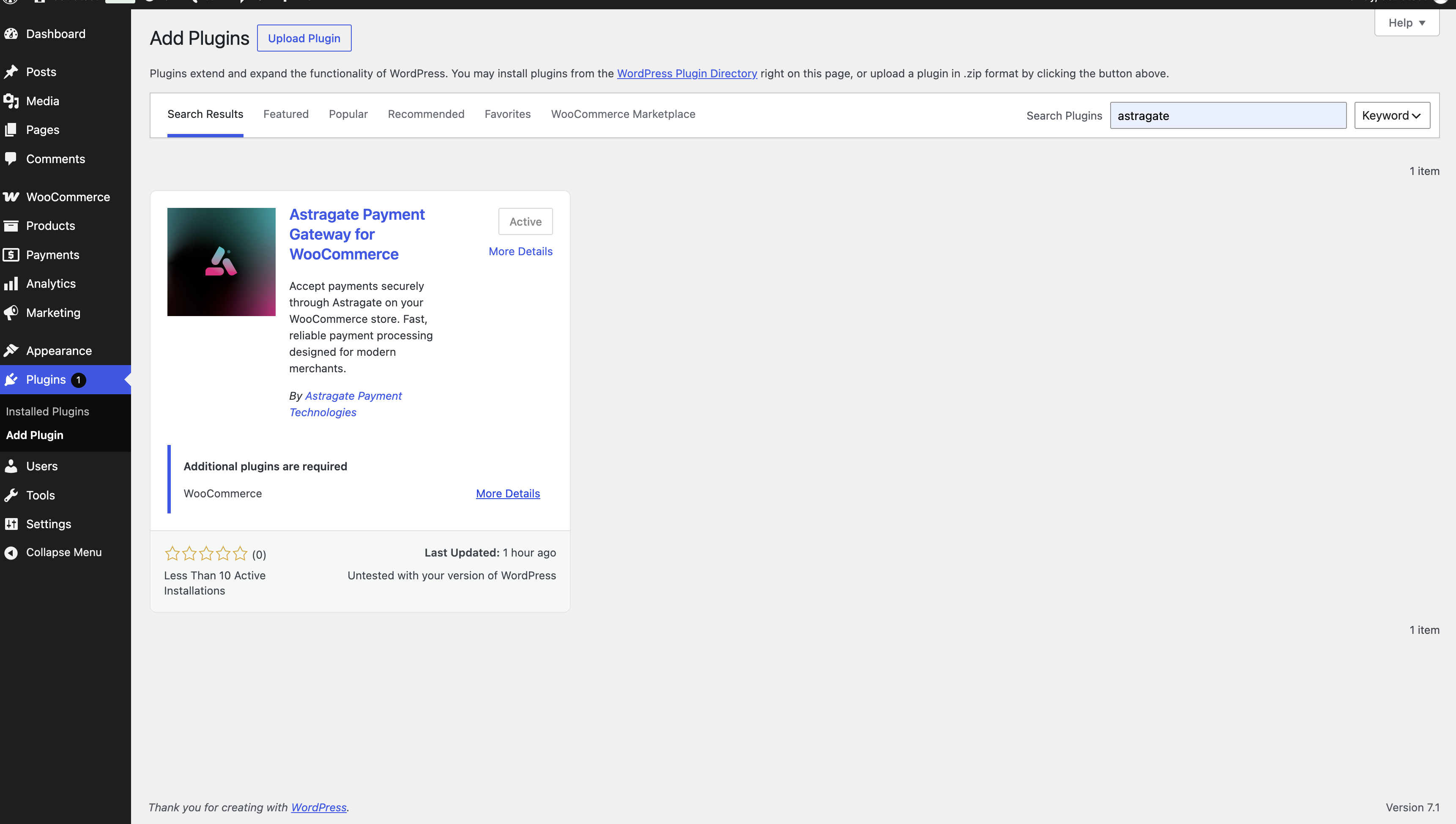
In your WordPress dashboard, go to Plugins → Add New Plugin.
-
Search for Astragate Payment Gateway for WooCommerce.
-
Click Install Now, then click Activate.
Note: WooCommerce must be installed and activated before you can install the Astragate Payment Gateway plugin.
Step 2: Configure Astragate in WooCommerce
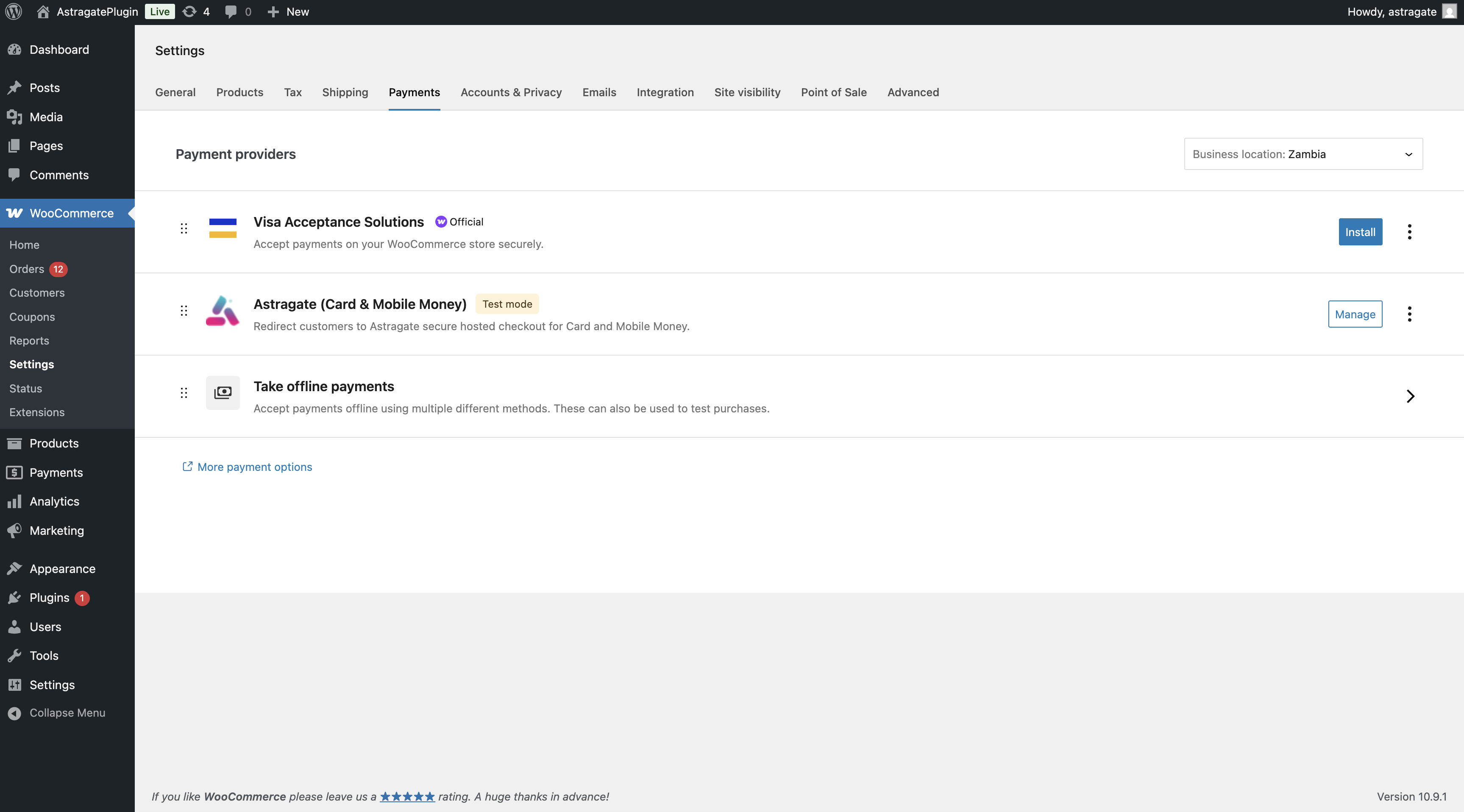
Go to WooCommerce → Settings → Payments.
Scroll down and click Manage next to Astragate (Card & Mobile Money)
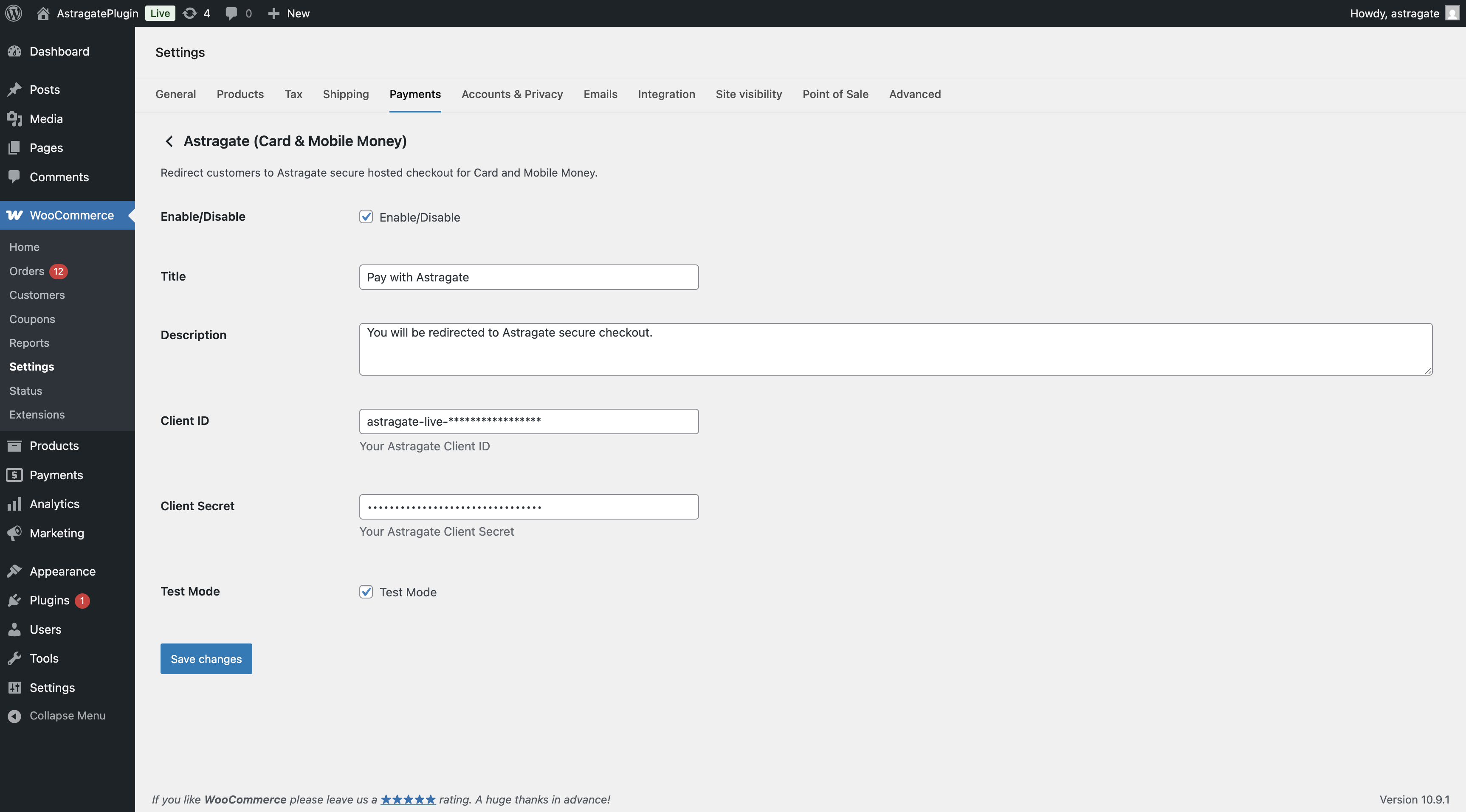
Fill in the following settings:
1. Enable/Disable → Check this box to turn it on
2. Title → Example: Pay with Card or Mobile Money
3. Description → Example: Safe and secure payment via Astragate
4. Client ID → Paste your Astragate Client ID
5. Client Secret → Paste your Astragate Client Secret
6. Test Mode → Check this while testing
Click Save changes
Step 3: Configure Return URL in Merchant Portal
-
Log into your Astragate Merchant Portal
-
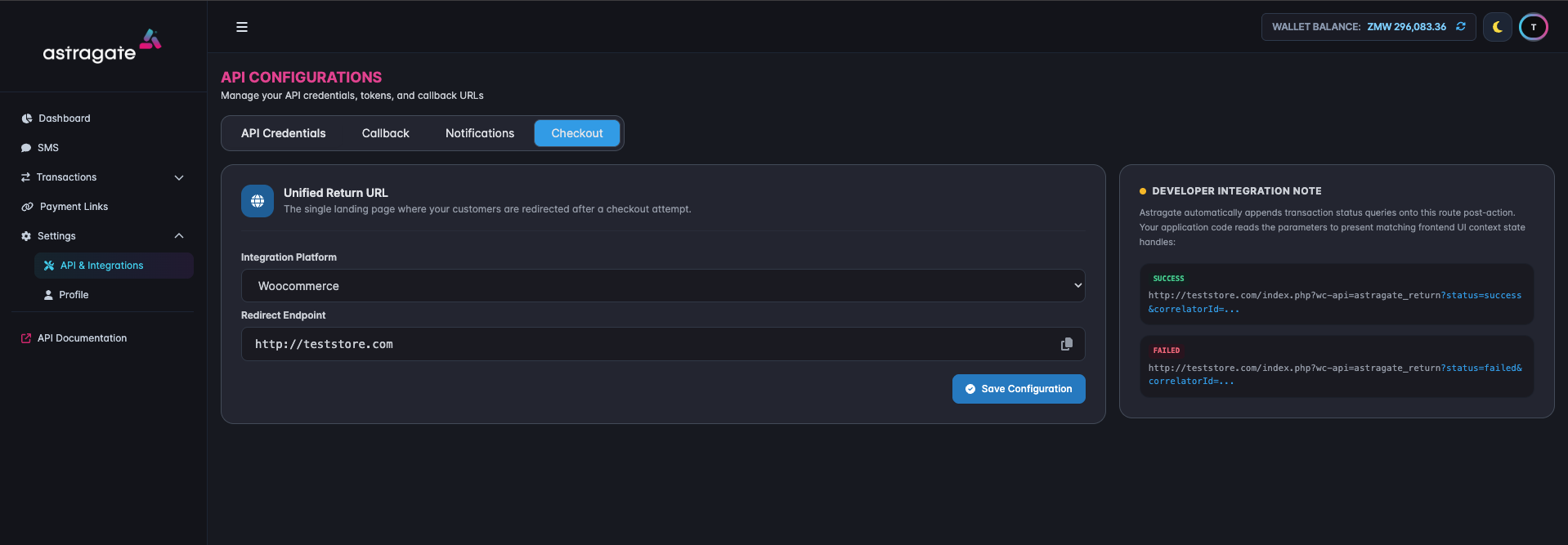
Go to Settings → API & Integrations → Checkout
-
Select Woocommerce and enter the url:
For live site: https://yourwebsite.com
For local testing (important): http://localhost/project-nameNote: Replace the project name part with your wordpress project folder
Step 4: Configure Woocommerce Callback in Merchant Portal
-
Log in to your Astragate Merchant Portal.
-
Go to Settings → API & Integrations → Callbacks.
-
Scroll to Add New Callback.
-
Select PLUGIN as the Callback Type.
-
Choose WooCommerce as the Plugin Type.
-
Enter your site's base url.
- For live site: https://yourwebsite.com
- For local testing (important): http://localhost/project-name
-
Click Add Callback to complete the setup.
Note: Enter only your WordPress site's base URL. Astragate will automatically configure the required callback endpoint.

Step 5: Test Your Payment
- Add a product to cart
- Go to checkout
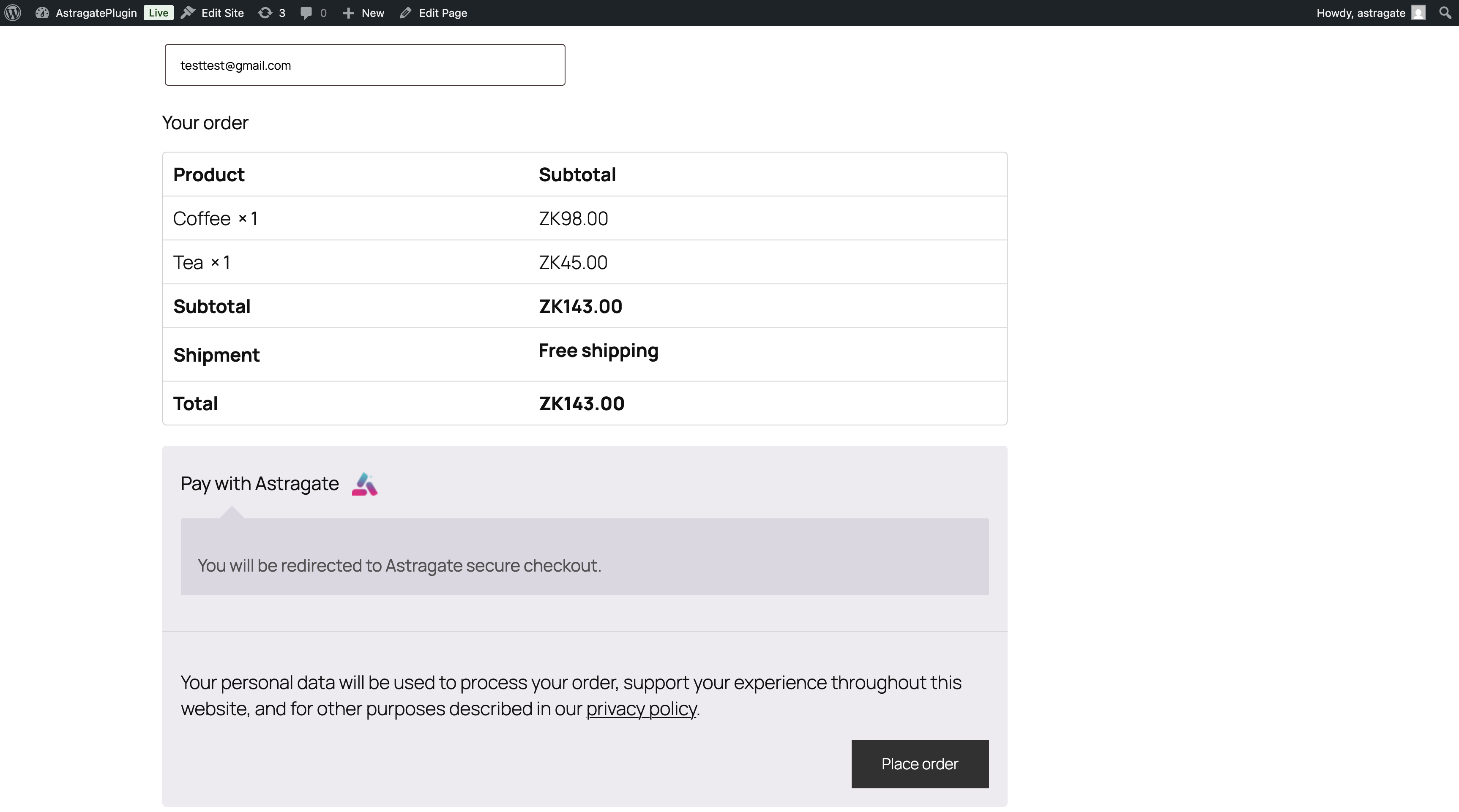
- Select "Pay with Astragate"
- Place order
- You should be redirected to Astragate’s payment page
- Pay using Mobile Money or Card
- Complete the payment
- You should be redirected back to your configured URL
For card test use code:
-
Card Number: 4111 1111 1111 1111
-
Expiry Date: Any date in the future
-
CVV: Any 3 or 4 digit code
Tip: Keep Test Mode ON until you are ready to go live
-
Step 6: Go Live
- Uncheck Test Mode in plugin settings
- Replace the test Client ID and Client Secret with the production credentials
- Update the Return URL in Astragate to your live website URL
- Test one real payment (small amount)
Common Setup Questions
Q: What if the customer is not redirected back? A: Go to Settings → Permalinks and click
Save Changes.
Q: Where can I see errors? A: Go to WooCommerce → Status → Logs and look for
astragate-gateway logs.
Q: Can I use this with Block Checkout? A: Yes, both classic and block checkout are supported.